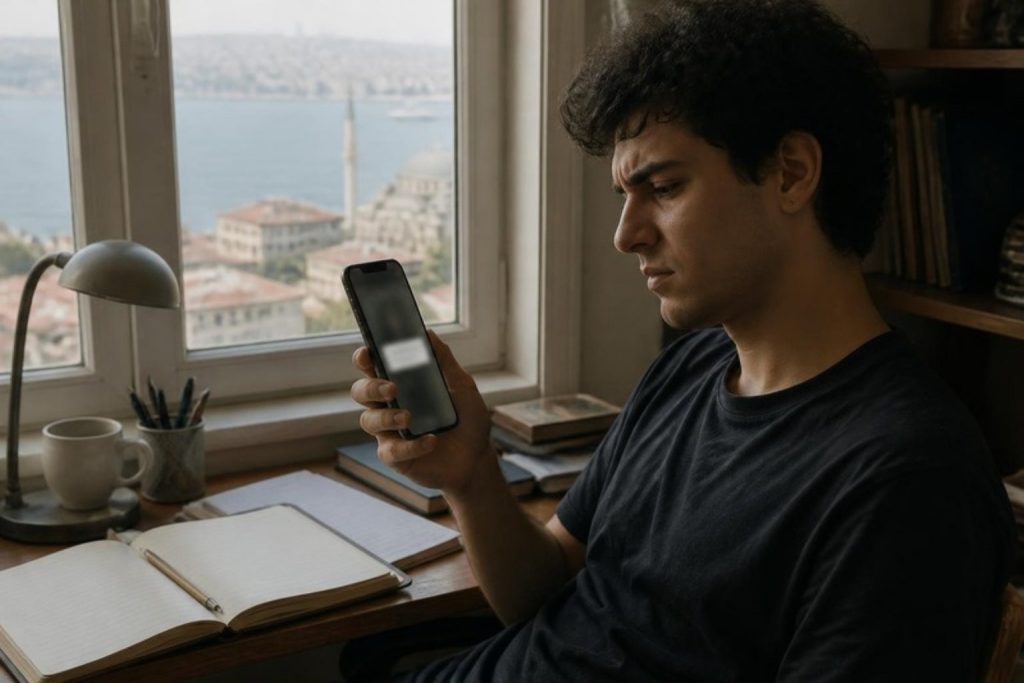

“I messaged you on Instagram but you never replied.” This is one of the sentences we hear most often from business owners. Most of the time the message really did arrive; it just landed in a folder that does not send notifications, got caught by a filter or was read in another app. And every missed message is a missed customer.
In this guide we explain why Instagram messages do not arrive or do not show up, where they go, especially on business and creator accounts, and how to fix it step by step.
Short answer: Most Instagram messages do arrive but end up somewhere else: in the General folder of business and creator accounts, which sends no notifications, in Requests or hidden requests, or already read in another app such as Meta Business Suite. Check these folders and your message controls first, then your notification settings and app version.
First, a 2-minute checklist
- Check the General tab in your inbox.
- Open the Requests folder and the Hidden requests inside it.
- Check whether Instagram is connected to Meta Business Suite or a CRM; the message may have been read there.
- Check the notification settings on your phone and in Instagram.
- Update the app and check whether there is a general Instagram outage.
If none of these helps, move on to the sections below.
1. The message may have landed in the “General” folder
On professional accounts (business and creator), the inbox is split into three folders: Primary, General and Requests. According to Instagram’s own explanation, notifications for unread messages in the General folder are off by default. So a customer wrote, the message arrived, but your phone never buzzed.
What to do:
- Check the General folder every day, or turn on notifications for the General folder in your notification settings.
- Move important customer conversations to Primary (you can swipe left on the chat or press and hold it to move it).
2. The message may be waiting in requests or hidden requests
When someone who does not follow you or has not messaged with you before sends a message, it goes to the Requests folder. Until you accept the request, the sender cannot see that their message has been seen.
Inside Requests there is also a Hidden requests section. Instagram puts messages it considers spam or offensive there, along with messages caught by your Hidden Words list. A real customer asking about prices sometimes ends up there too, especially if the message contains a link or a lot of emojis.
- Tap the Hidden requests link at the bottom of the Requests folder.
- Check your Hidden Words list in settings and make sure you have not accidentally added words like “price” or “offer”.
- If the “Hide more message requests” option is on, some requests go straight to the spam folder. This setting is off by default.
3. Message controls may be limiting who can write to you
Instagram lets you control who can message you and where their requests go. If this is set up wrong, some people’s messages never reach you.
Path: Settings → How others can interact with you → Messages and story replies → Message controls.
Here you will find separate options for your followers, people you do not follow and people on Facebook: “Chats”, “Message requests” or “Don’t receive requests”. For a business, the right setting is usually: followers go straight to chats, everyone else goes to message requests. “Don’t receive requests” means customers cannot reach you at all.
Note: These settings do not affect messages from your ads with a “Send message” objective; messages from ads still come through.
4. The message may have been read in another app (Business Suite and CRM)
This is the cause businesses overlook most often. If your Instagram account is connected to Meta Business Suite, your Facebook Page or a CRM, messages also appear there. When someone on the team opens a message in the Business Suite inbox on a computer, the message may show as read in the Instagram app on the phone, and no notification may come. The result: everyone thinks “the message never arrived”, when in fact someone read it but did not reply.
To check the connection: Settings → Messages and story replies → Message requests → Connected tools → Allow access to messages. If this option is on, your Facebook Page, Meta Business Suite and connected apps can read and reply to your messages. If it is off, messages are managed only in the Instagram app.

Turning this option off does not solve the problem; the real solution is to manage messages in one place, with a clear owner for each. We cover this in the “How businesses can avoid missing messages” section below.
5. Messages from people you restrict go to requests
If you have restricted an account with the Restrict option, your chat with that person moves to Message requests and their new messages automatically go there too, with no notification. Accounts you have blocked cannot message you at all. If a customer’s messages keep disappearing, go to their profile and check whether they are restricted or blocked.
6. The first message from non-followers is limited to one message
Instagram limits a message request from someone who does not follow you to a single text message. Until you accept the request, they cannot send photos, videos or a second message. If a customer says “I tried to send a photo but it didn’t go through”, this is why. Also, teen accounts (Teen Accounts) can only receive messages from people they follow or are connected to.
7. Your account’s messaging may be restricted
For business accounts that send many messages in a short time or are thought to have sent messages that break the rules, Instagram may temporarily limit messaging. In that case you will see a warning similar to “We limit how often you can do certain things on Instagram to protect our community”; a warning also appears in the Business Suite inbox, and messaging ads may stop. You can see the restriction under Settings → Account Status and appeal with “Request a review”. If your account has been disabled entirely, see our guide to suspended Instagram accounts.
8. Notifications, the app and outages
- Notifications inside Instagram: Under Settings → Notifications → Messages, make sure notifications for messages and message requests are on.
- Phone notifications: On iPhone, Settings → Notifications → Instagram; on Android, Settings → Apps → Instagram → Notifications. Focus or Do Not Disturb mode also silences notifications.
- Multiple accounts: If several accounts are logged in on the same app, check that notifications are on for the other accounts as well.
- Updates and cache: Update the app. On Android, Settings → Apps → Instagram → Storage → Clear cache often helps (if you choose Clear data, you will need to log in again).
- General outage: If everyone has the same problem, there is nothing for you to do. You can check sites like Downdetector or search social media for “instagram down”.
How businesses can avoid missing messages
- Bring messages together in one place. If Instagram, Facebook and WhatsApp messages are scattered across different phones and apps, something will inevitably slip through. A CRM that collects them all in the same inbox shows which messages have been answered and who is handling them. (See What is CRM?)
- Give every conversation an owner. If more than one person on the team handles messages, it must be clear who each read message belongs to.
- Set a response time target. People who write on Instagram usually message several businesses at once. The first to reply often gets the sale.
- Use quick replies and automatic greetings. Replying to messages that come in outside working hours with “We will get back to you first thing in the morning” stops customers from thinking they have been ignored.
- Give customers a second channel. Put a WhatsApp link and phone number on your profile, so customers can still reach you if Instagram has a problem. (See our WhatsApp Business guide.)
If you see an “action blocked” warning when you try to send a message, the problem is not with incoming messages but a temporary limit on your account: Instagram action blocked guide.
Frequently asked questions
Instagram messages arrive but there is no notification. Why?
The message is most likely landing in the General folder, where notifications are off by default. You also will not get a notification if the message was read in Business Suite or if your phone’s notification settings are off.
Where are Instagram message requests?
They are under the Requests link at the top of your inbox. Requests considered spam or offensive sit in the Hidden requests section at the bottom of that folder.
My Instagram business account is not receiving messages. Should I switch back to a personal account?
Usually there is no need. The problem is mostly in the folders, message controls or connected tools settings. Switching to a personal account means losing insights, ads and contact buttons.
Instagram messages show up on the computer but not on the phone. Why?
This can happen if the app is not up to date or you are logged in with a different account. If a message was read on the computer, it shows as read on the phone and no notification comes.
Can deleted or missing Instagram messages be recovered?
A conversation you deleted yourself cannot be restored on your side. But if the message was not deleted, it is most likely in the General, Requests or Hidden requests folder.
In summary
Most “Instagram messages not showing” problems actually come from the message being somewhere else: the General folder without notifications, requests and hidden requests, messages read in Business Suite or restrictive message settings. Sorting out these folders and settings once largely puts an end to missed customer messages.
If you want to bring your Instagram, Facebook and WhatsApp messages together in a single inbox and never leave a customer unanswered, take a look at Sodo CRM or get in touch with us.
Official source: Instagram Help Center. Information checked on 16 October 2026.